 HomeTab
Free Chrome extension · version 1.3.0
Home at home.
Work at work.
HomeTab gives every location its own new tab page: your work bookmarks, feeds and dashboards at the office, your recipes, playlists and weekend plans at home. It picks the right one by where you are.
Free · no account · nothing leaves your browser

It knows where you are, so you never have to switch.
Set it up once. From then on, every new tab opens on the page for the location you're in.
Add your locations
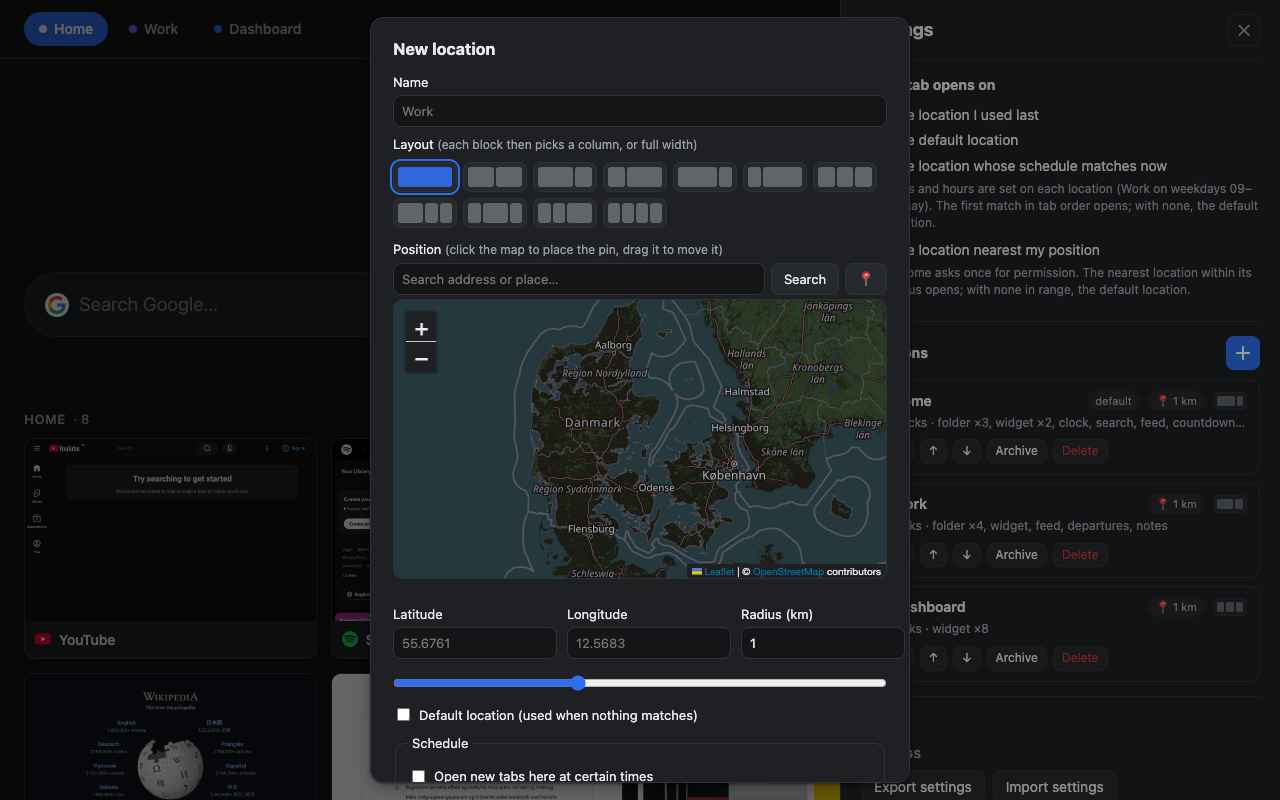
Home, work, the summer house: a pin on the map and a radius around it. Add as many as you like.
Fill each page
Pick the bookmark folders, notes, feeds and widgets that belong there, or start from a template.
Just open a tab
The right page appears on its own. Switch any time with the tabs at the top, or turn position detection off and choose by hand.
Search
Evenings
4 of 11- RRecipes
- DDR TV
- BLibrary
- NNetbank
Notes
- Pay rent
- Book dentist
- Return library books
Dashboards
3 of 8- Analytics
- Status
- Sprint board
Trains home
weekdays after 15:00- 16:42Re København H4 min
- 16:47+2B Høje Taastrup11 min
- 16:52Re Østerportaflyst
Search
Most visited
6- MMail
- CCalendar
- MMaps
- WWikipedia
From your other devices
Phone- Hotel booking
- Ferry timetable
- Trail map
What a new tab can look like.
The things you open most, arranged the way you like, and nothing else.
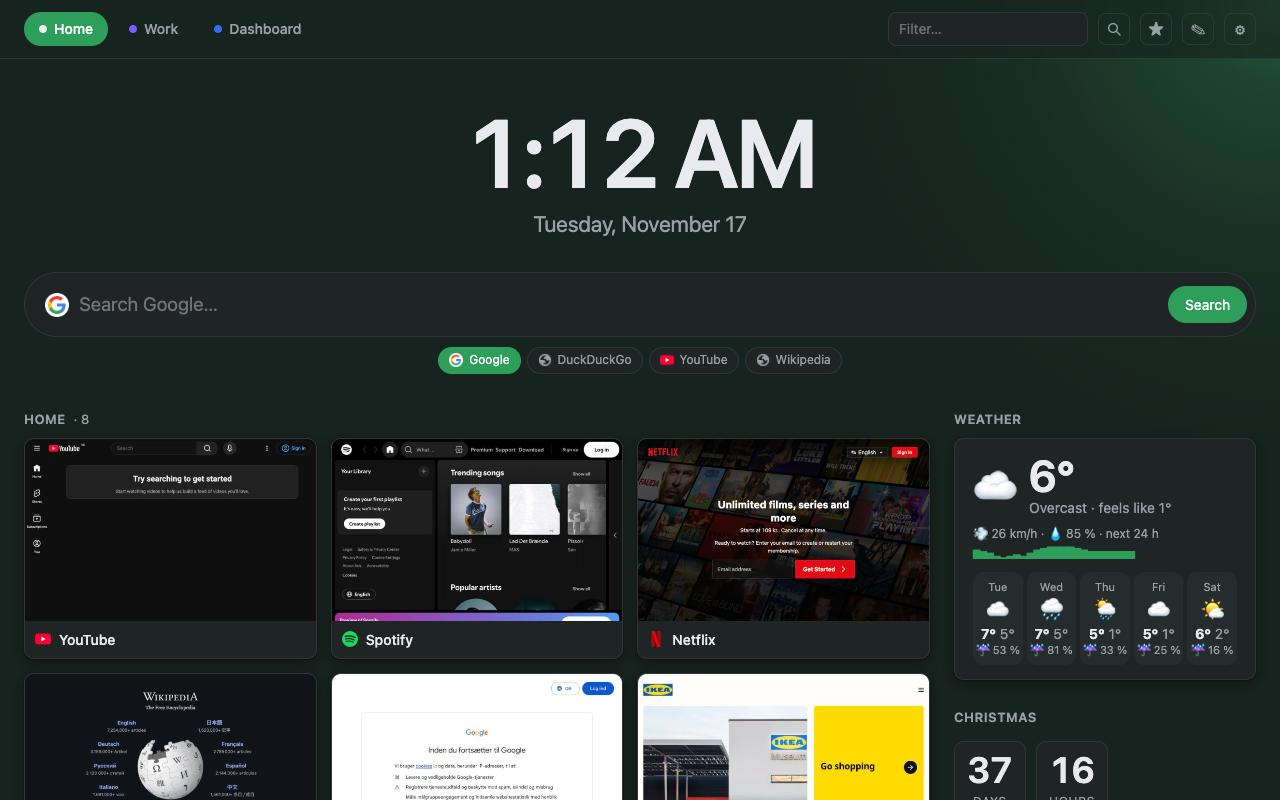
Your evening, in one glance
A clock, search, your favourite sites as page previews, the weather and a countdown to Christmas.
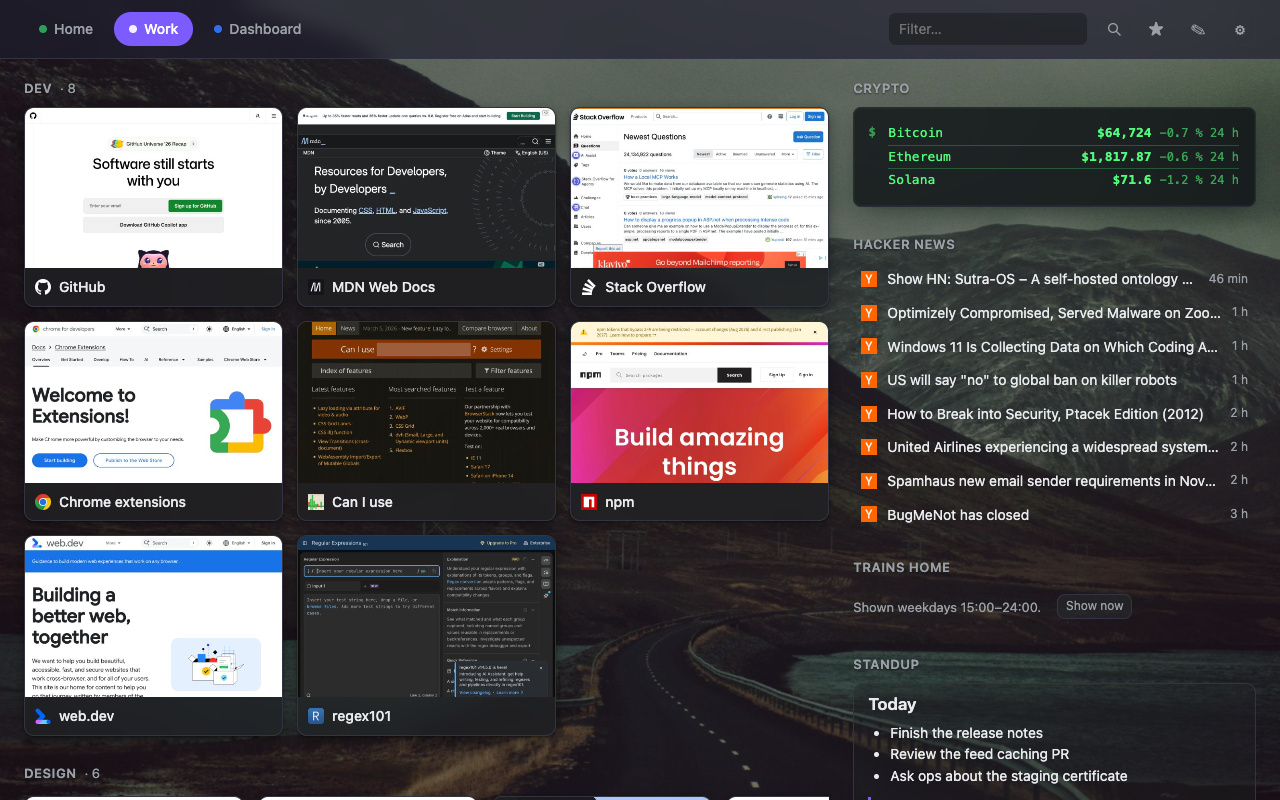
Your tools, a click away
Developer bookmarks with page previews, Hacker News, crypto prices and the trains home, on a background photo of your choice.

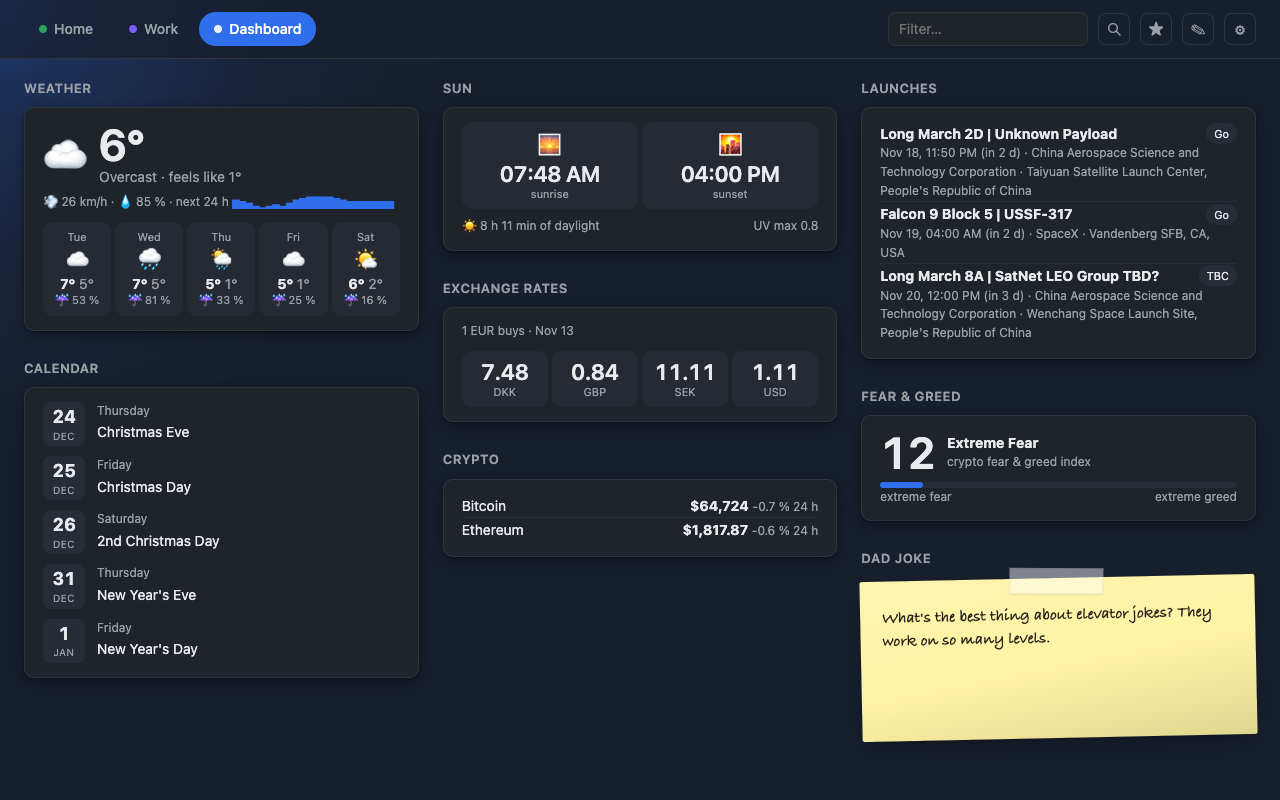
A dashboard without code
Weather, sunrise, calendar, exchange rates, rocket launches and a dad joke: all widgets, all from a template you can read and change.

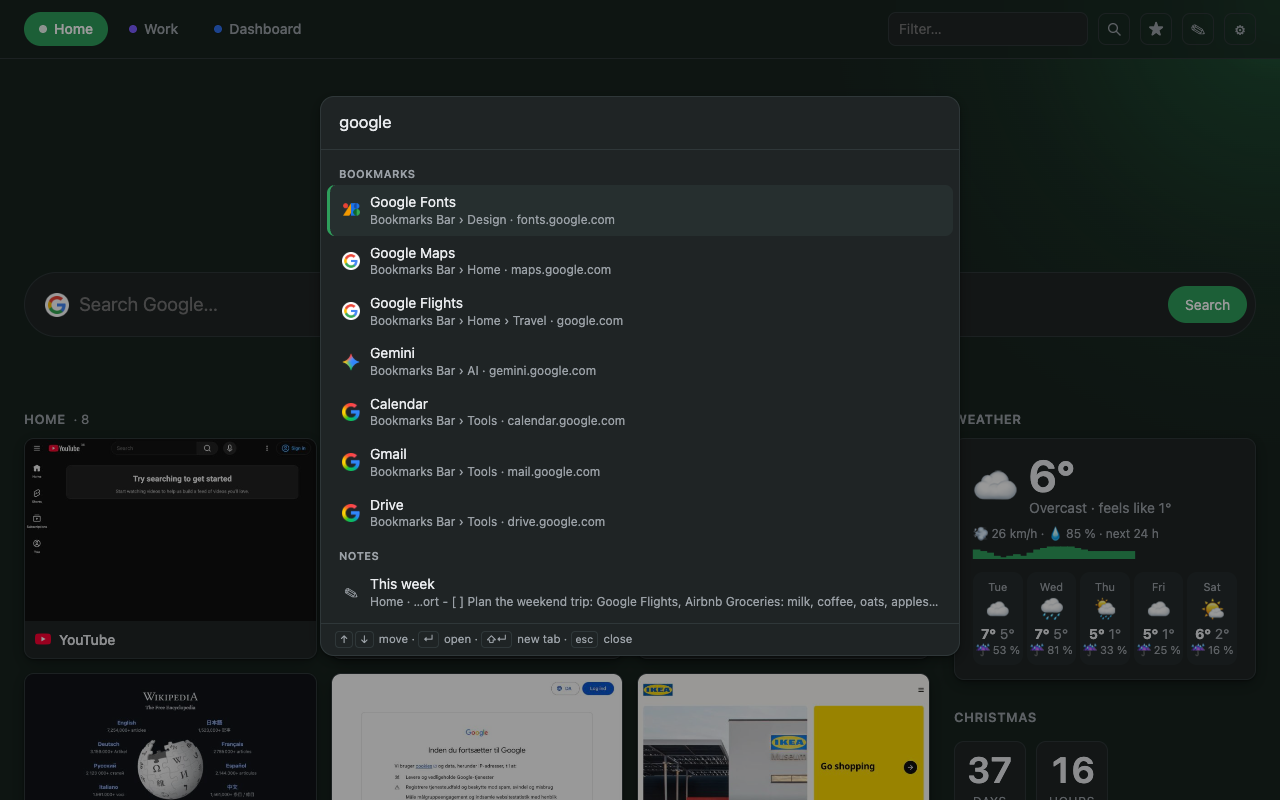
Find anything, from anywhere
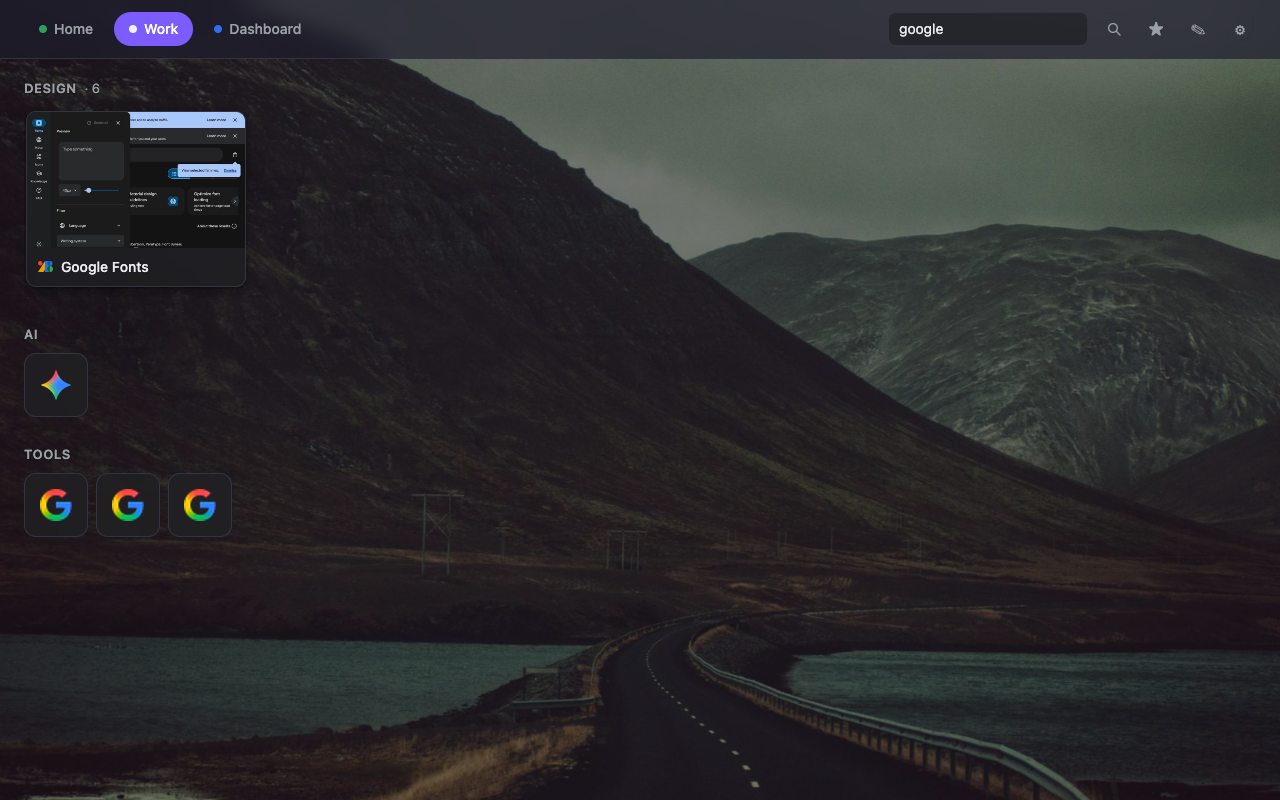
⌘K opens a palette over all your bookmarks, every location's notes and the headlines in your feeds. The filter box at the top narrows the page you're on as you type.


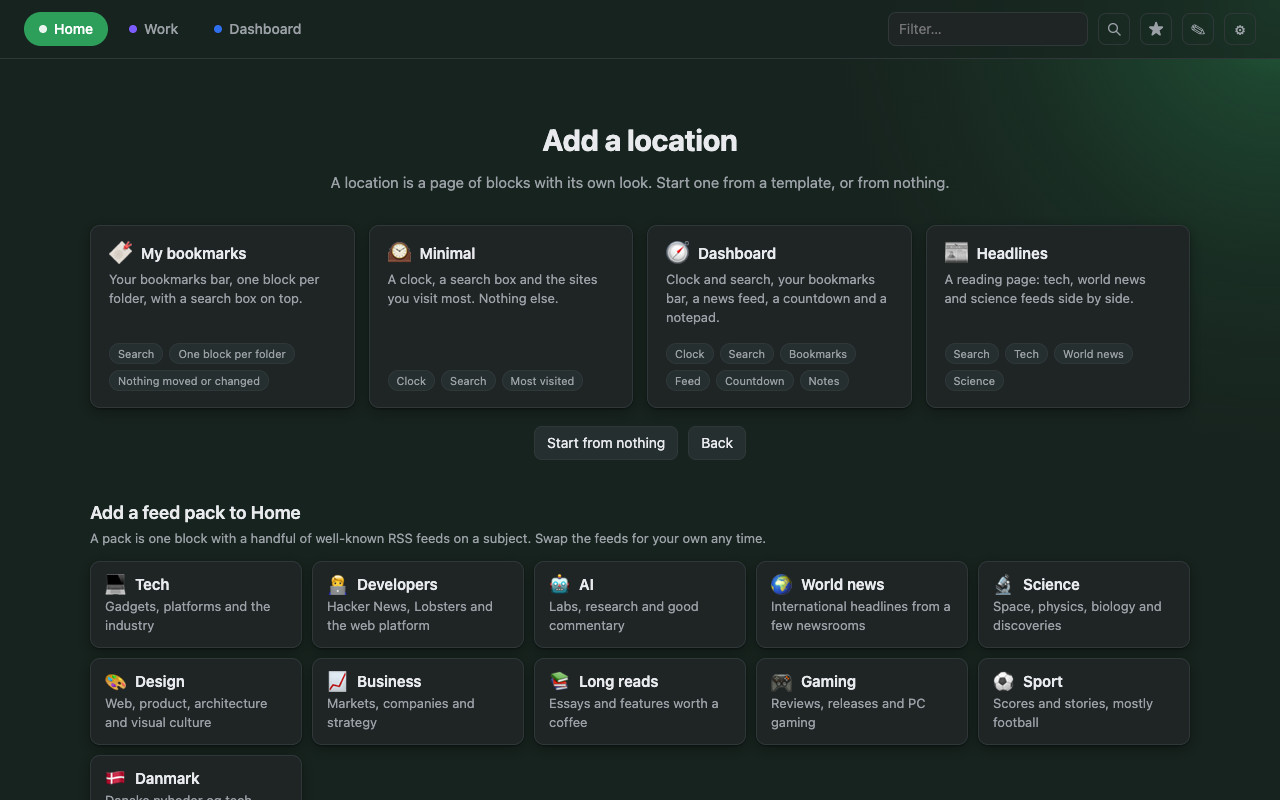
Start from a template
A new location can start from a template: your bookmarks bar in columns, a minimal page, a dashboard or headlines. Or from a feed pack: well-known feeds on a subject, ready as one block.

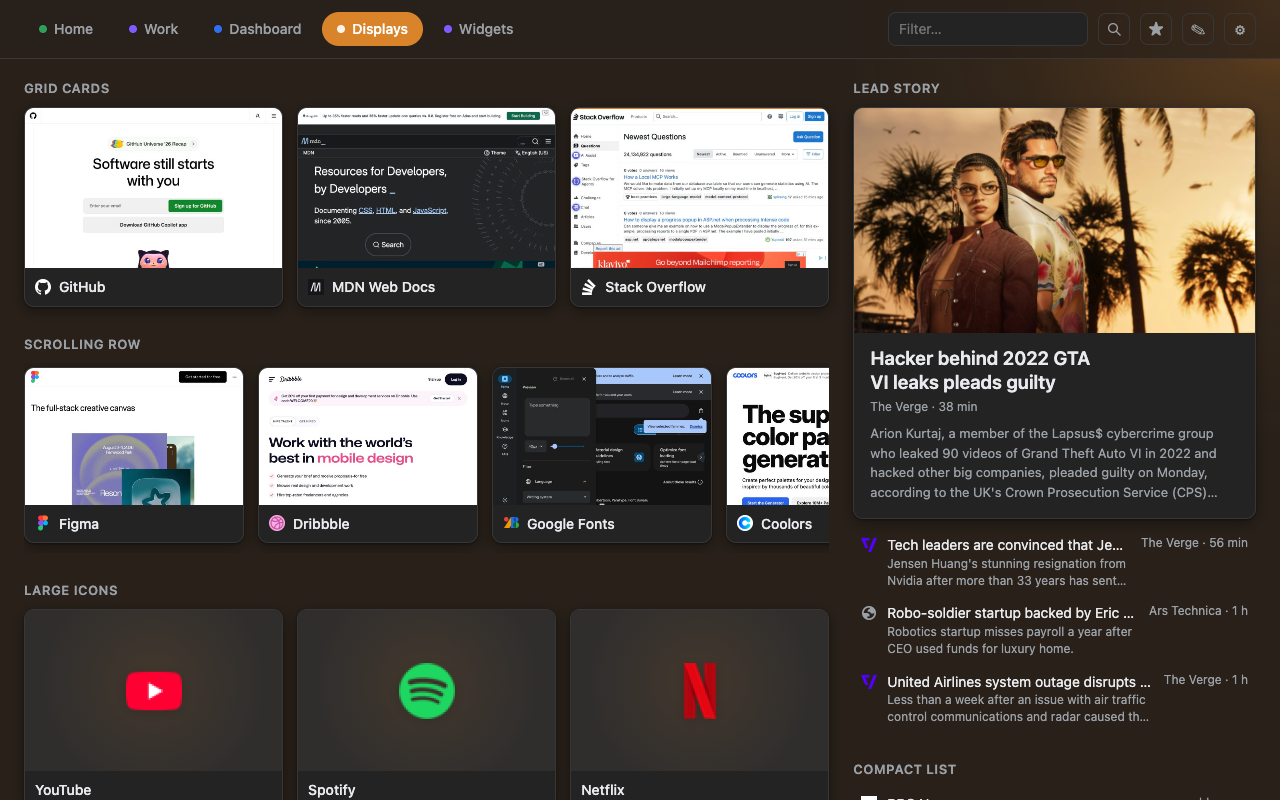
Five ways to show a folder
Grid cards with page previews, a scrolling row, large icons, a compact list or icons only, chosen per block. A feed can lead with its newest story, picture and all.

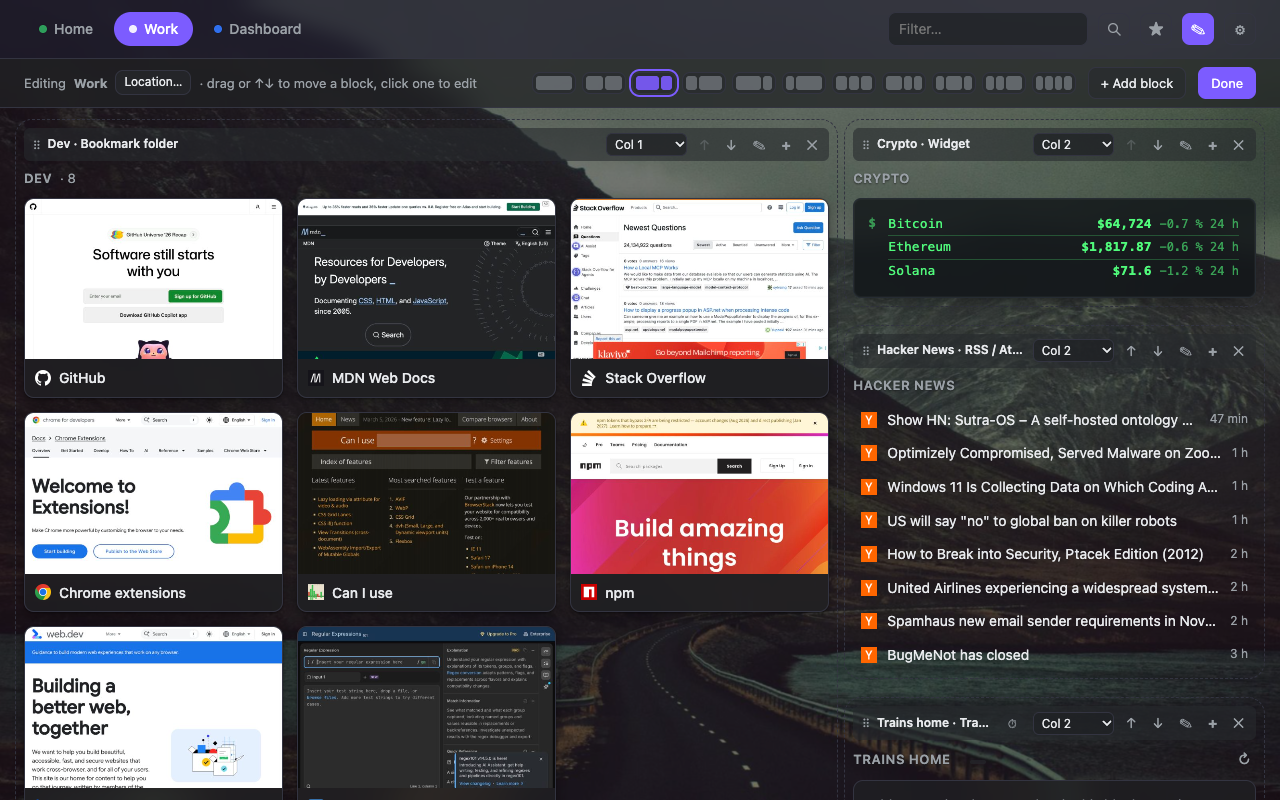
Edit right on the page
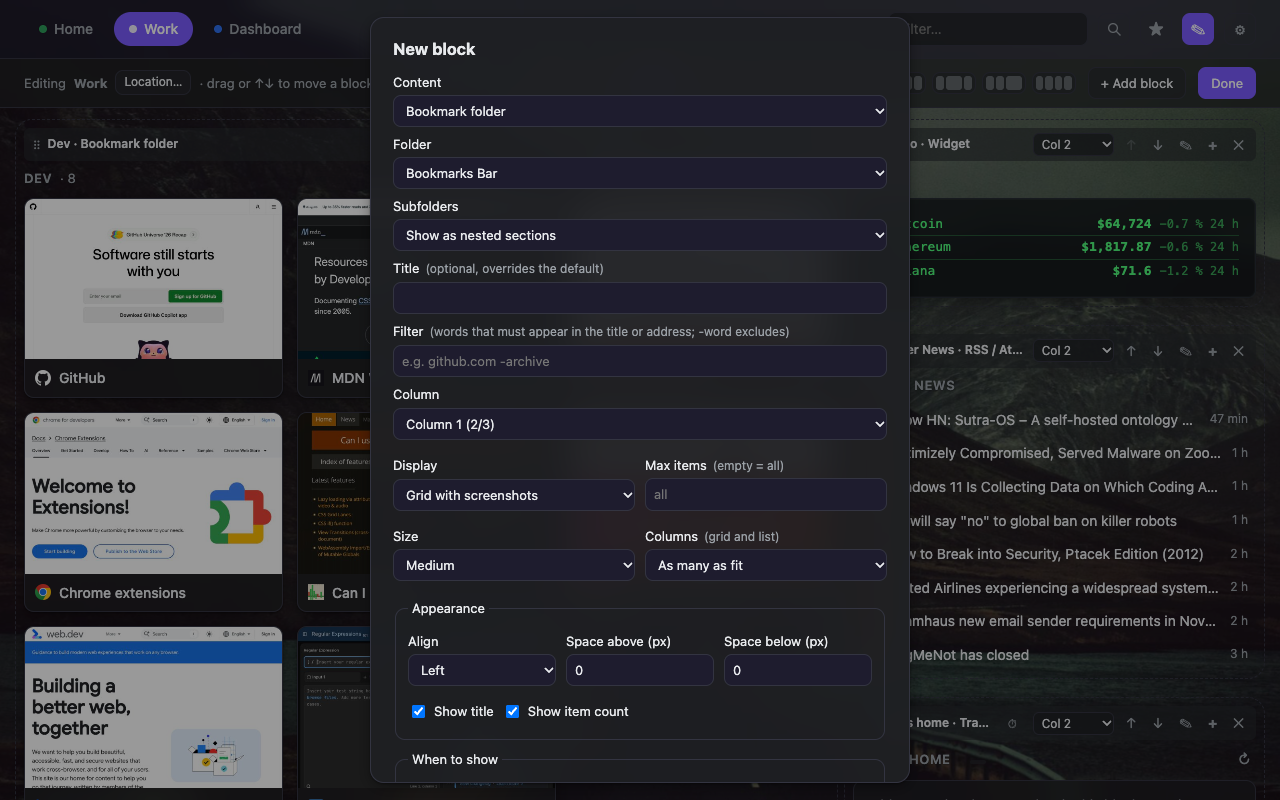
Click the pencil, drag blocks between columns, move one a step with the arrows, add one with the + where you want it. Press Done.


Set up your locations once
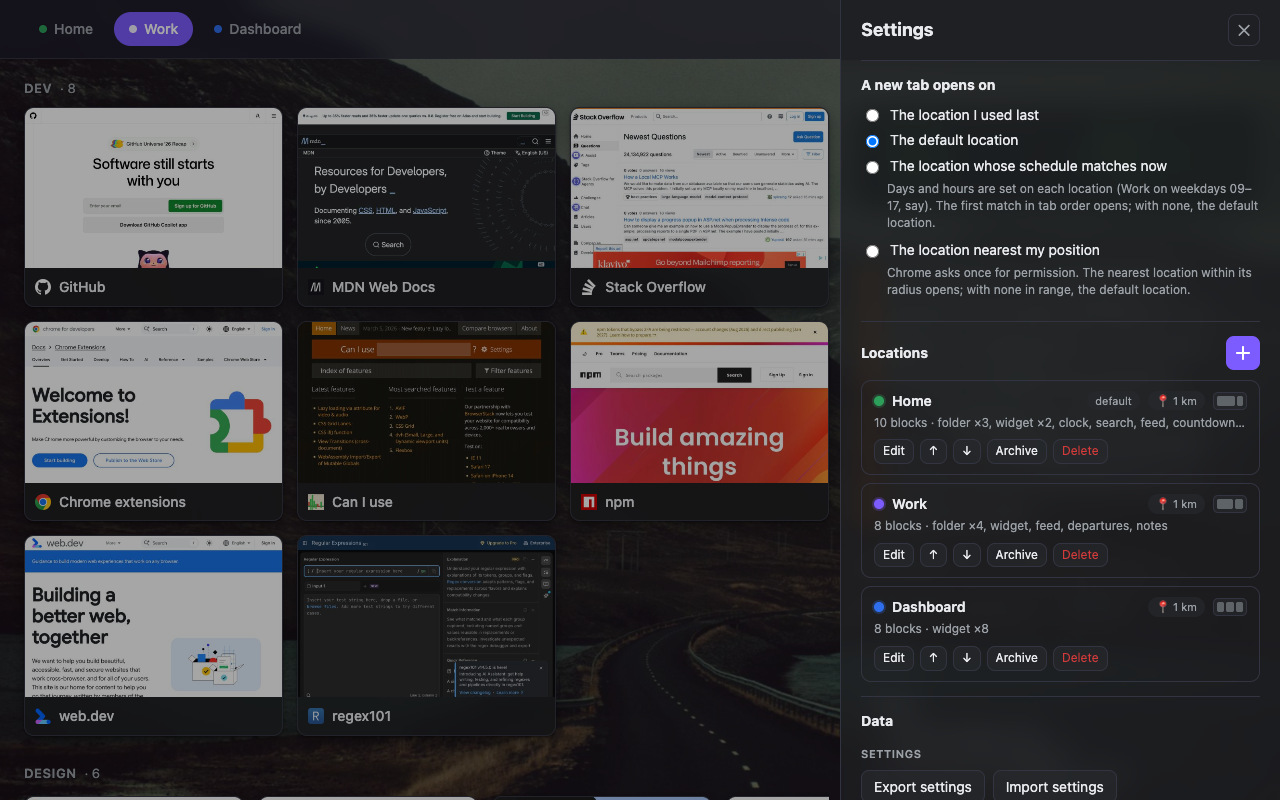
The settings drawer lists your locations with what is on them and decides what a new tab opens on. A new location is a name, a pin and a radius. Export and import carry the whole setup to another computer.


What's new in 1.3.0
Search everything
⌘KorCtrl+Kopens a palette over all of Chrome's bookmarks, the notes of every location and the headlines the feed blocks have cached, grouped by folder, location or feed. Arrow keys and Enter; the last row searches the web. Nothing is fetched for a search.Widgets, without code
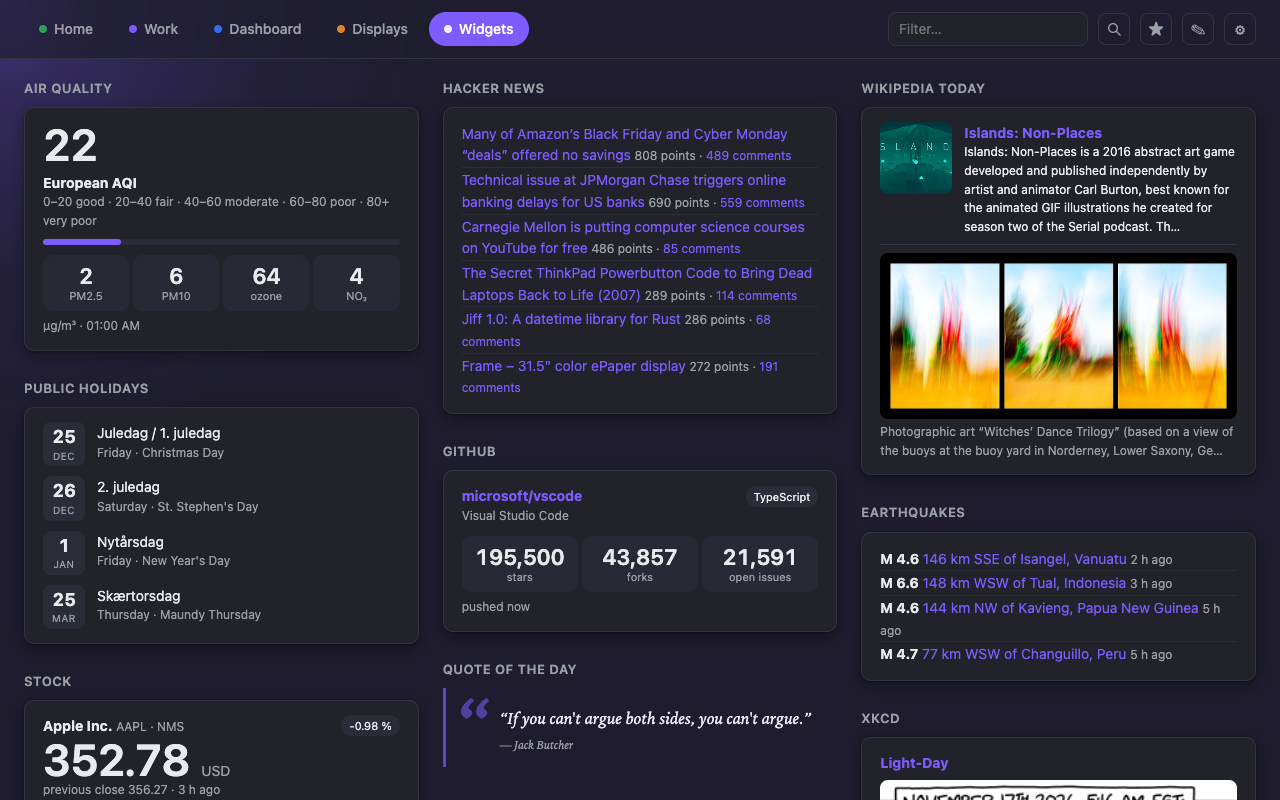
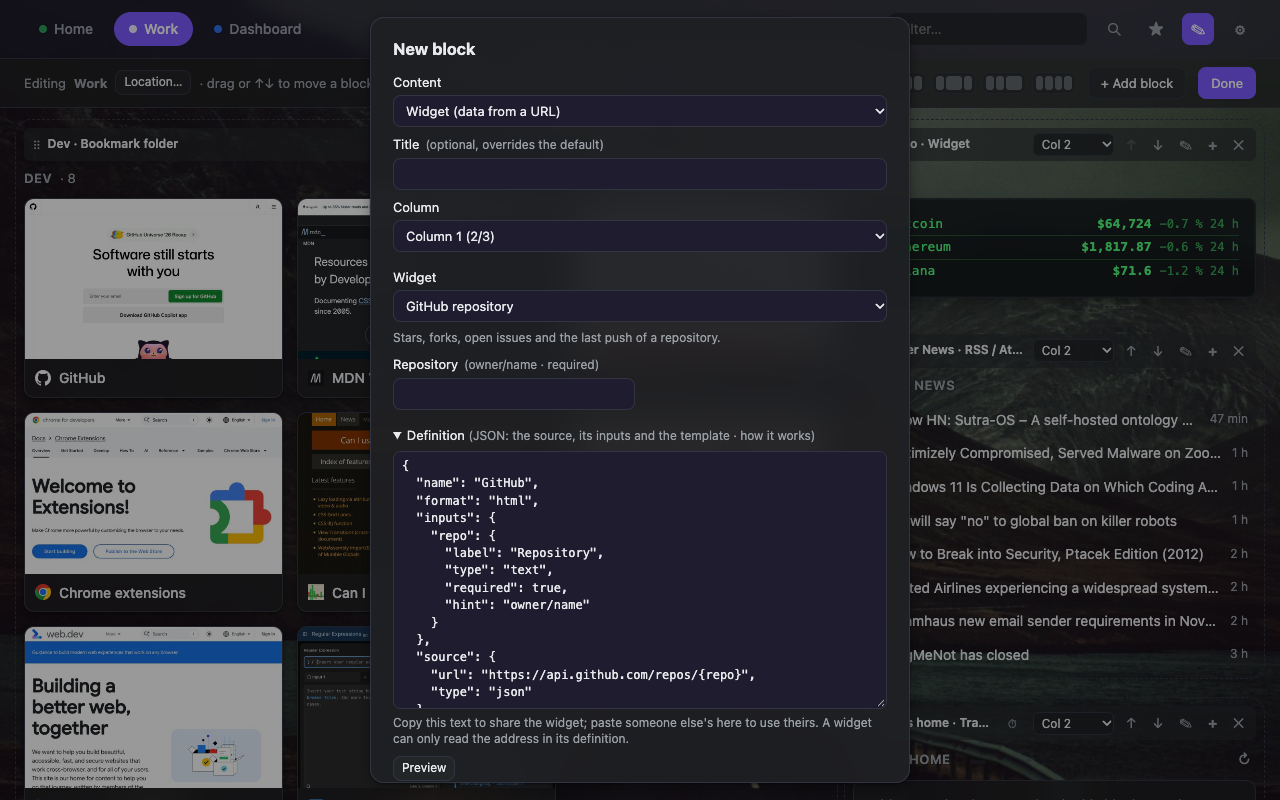
A block you define yourself: a data source, a refresh interval and a template with placeholders. Nineteen come built in, from weather to rocket launches, none needing an API key. Copy a definition to share it.
Move and delete bookmarks
The bookmark dialog has a folder list and a Delete button, so a card can be moved to another folder, or a new one, without opening Chrome's bookmark manager.
Widgets you write yourself.
A widget is a data source (JSON, a feed, an iCalendar file or plain text), a refresh interval and a template with placeholders such as {{current.temperature_2m | round}}°. Write it in Markdown for a quick card, or in HTML with a few layout classes (tiles, big numbers, date badges, rows) when it should look like a widget; the built-in ones do. HomeTab fetches the data, fills the template and shows the result in the notes look, so it follows your theme. A definition is a bit of JSON: paste one you were given, or copy yours to share it.
Built in, none needing an API key (each links to its definition):


Everything a page can hold.
A page is columns of blocks. Mix them freely, and show each one as grid cards, a scrolling row, a compact list or icons.
Bookmark folders
Any folder you already have, subfolders as sections, shown as cards with page previews or as large icons.
Split a big folder
Show only matching bookmarks in a block, like
github.com -archive, without moving anything.Search box
Several engines one click apart, or one of your own. Type an address to go straight there.
Notes and to-dos
Markdown with task lists, edited in place. Plain, or as a sticky note, lined paper, an index card, a chalkboard or a terminal.
News and YouTube
RSS and Atom feeds and YouTube channels, merged and sorted, shown from cache while they refresh. A lead story display puts the newest entry up large with its picture.
Templates and feed packs
A new location can start from a template, or from a pack of well-known feeds on a subject, one block each.
Clock and countdown
The time, weekday and date in your language, for any time zone. Or a countdown to a date that keeps counting after it has passed.
Recent and most visited
Most visited sites, recent history and recently closed tabs. Each asks for its permission only when you add it.
Your other devices
Open the tab you were reading on your phone a minute ago.
Train departures
Live times, delays and cancellations for your station in Denmark, via Rejseplanen.
Any web page
Embedded in a block, for the dashboard or status page that has no feed.
Show at the right time
Have a block appear only on weekdays after 15:00, or keep it behind a "Show now" button.
Edit on the page
Edit mode turns the page itself into the editor: drag blocks between columns, move one with the arrows, add one with the + on any block or empty column.
Page previews
A picture of each site, taken in your browser and kept there, zoomed in so a card shows the top of the page large. The toolbar button captures dashboards behind a login. Or pick an image of your own.
Themes, backgrounds and glow
A theme, an accent colour, a photo or video that slowly drifts and a soft glow, different for every location. Light, dark or following your system.
Find it fast
Type in the filter box to narrow every block at once. Enter opens the search palette when nothing on the page matches.
Bookmarklets
Your little
javascript:tools work from the new tab too, marked with their own tile.Archive a location
Put away a location you do not need for now, like a summer house, and restore it exactly as it was.
Your location never leaves your browser.
HomeTab compares where you are with the locations you saved, right there in Chrome. There is no server, no account and no analytics.
Stays on your computer
Your locations, blocks, notes and pictures are stored in your Chrome profile. Remove the extension and they are gone.
No tracking, no ads
HomeTab collects nothing and sends nothing to the developer. The only network requests are the feeds, widgets, pages and services you configure yourself.
Asks only when needed
Chrome asks for history, most visited or other devices the first time you add a block that needs them.
Questions, answered.
Do I have to share my location?
Only with Chrome itself, and only if you want automatic switching. HomeTab never sends it anywhere. Turn position detection off and choose a location with the tabs at the top instead.
What happens when I'm somewhere new?
You get your default location. Any location can be the default, so make one for travelling if you like.
Will it change my bookmarks?
Only when you ask it to. HomeTab shows the bookmarks you already have; the Edit bookmark dialog can rename, move or delete one, as Chrome's bookmark manager does. Remove the extension and your new tab is back to normal.
It always opens the default location on my Mac.
macOS needs to allow Chrome to see your location. Open System Settings, Privacy & Security, Location Services, and switch on Google Chrome.
Why does it ask for more permissions later?
Blocks like history, most visited and other devices need extra access. HomeTab asks the first time you add one of those blocks, so it never holds a permission you do not use.
Where does a widget get its data?
From the address in its definition, and nowhere else. The built-in ones use public sources that need no key: Open-Meteo for the weather, your own calendar's ICS link, GitHub's API. The response is cached for the widget's refresh interval and kept when a refresh fails.
Can I move my setup to another computer?
Yes. Export your settings from the settings drawer and import the file on the other computer. Folder blocks find their folders by name, so the file works in a profile with different bookmark ids.
Does it cost anything?
No. It is free, with no ads and no paid tier.